Encountering the dreaded “WARNING: UNPROTECTED PRIVATE KEY FILE!” message when trying to SSH into your Amazon EC2 instance can be a frustrating roadblock. This common error, often popping up during attempts to establish a secure connection, signifies that your private key file has permissions that are too open. This means that other users on your system might be able to read it, creating a significant security risk. Understanding why this warning appears and, more importantly, how to resolve it is crucial for maintaining the security of your EC2 instances and the data they hold. Ignoring this warning can leave your server vulnerable to unauthorized access. Let’s dive deep into the reasons behind this warning and the simple steps you can take to fix it and secure your connection.
Understanding the “Unprotected Private Key File” Warning
The “WARNING: UNPROTECTED PRIVATE KEY FILE!” message is a security alert issued by SSH clients, like those used on Linux, macOS, and Windows (via tools like PuTTY or WSL). It arises because SSH relies on public-key cryptography for secure authentication. This means you have a pair of keys: a private key, which you keep secret and use to prove your identity, and a public key, which you place on the server you want to access. The security of this system hinges on the secrecy of your private key. If the permissions on your private key file are too permissive (e.g., readable by anyone), SSH issues this warning to alert you to the potential security vulnerability. Think of it like leaving the key to your house under the doormat – anyone could find it and gain access. This warning is not just a formality; it’s a critical indicator that your server’s security could be compromised.
Specifically, the SSH client checks the file permissions of your private key. On Unix-like systems (Linux, macOS), it expects the file to be readable and writable only by the owner (you). If the file has group or world read/write permissions, the SSH client considers it “unprotected” and displays the warning. This default behavior is a built-in safeguard. The chmod command, used to change file permissions, is the primary tool for addressing this issue. For example, if a file has permissions of 644 (read/write for owner, read for group and others), it’s considered unprotected. Changing it to 600 (read/write for owner only) will resolve the warning.
Ignoring this warning can have serious consequences. A compromised private key allows an attacker to impersonate you and gain complete control over your EC2 instance. This could lead to data breaches, malware infections, or the instance being used for malicious purposes. Security best practices dictate that you should always heed such warnings and take immediate action to rectify the situation. According to a report by Verizon, weak or stolen credentials are a leading cause of data breaches [External Link: Verizon Data Breach Investigations Report](https://www.verizon.com/business/resources/reports/dbir/). The “WARNING: UNPROTECTED PRIVATE KEY FILE!” warning directly relates to this risk, highlighting the importance of proper key management.
Fixing the “Unprotected Private Key File” Error
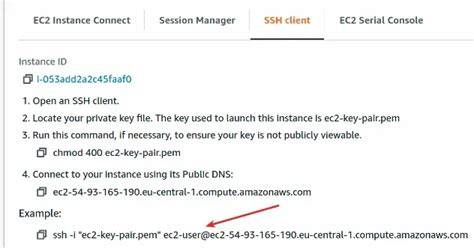
The most common and effective solution to the “WARNING: UNPROTECTED PRIVATE KEY FILE!” error is to adjust the file permissions of your private key file. This is typically done using the chmod command in a terminal or command prompt. The goal is to ensure that only you, the owner of the file, have read and write permissions. Here’s how you can do it:
- Locate Your Private Key File: Determine the exact path to your private key file (e.g., ~/.ssh/my_ec2_key.pem).
- Open a Terminal or Command Prompt: Access the command line interface on your system.
- Use the chmod Command: Execute the following command, replacing path/to/your/private_key.pem with the actual path to your file: chmod 600 path/to/your/private_key.pem. This command sets the permissions to read/write for the owner only.
- Verify the Permissions: Use the ls -l path/to/your/private_key.pem command to verify that the permissions have been changed correctly. You should see -rw——- at the beginning of the output.
- Retry the SSH Connection: Attempt to connect to your EC2 instance using SSH. The warning should now be gone.
The chmod 600 command is the standard recommendation for securing private key files. This command ensures that only the owner (you) can read and write to the file, preventing other users on the system from accessing your private key. If you’re using Windows Subsystem for Linux (WSL), you may need to adjust permissions from within the WSL environment, as Windows file permissions can sometimes interfere with SSH’s security checks. Remember to always double-check the path to your private key file before running the chmod command to avoid accidentally changing permissions on the wrong file. For example, on macOS, you might find your key in ~/.ssh/id_rsa or a custom named file. Always replace path/to/your/private_key.pem with the accurate location.
Sometimes, even after using chmod 600, the warning might persist. This could be due to various reasons, such as incorrect file ownership. You can verify the file ownership using the ls -l command. If the owner is not you, you can change it using the chown command. For example: sudo chown $USER:$USER path/to/your/private_key.pem. This command changes the owner and group of the file to your current user. Following these steps diligently will almost always resolve the “WARNING: UNPROTECTED PRIVATE KEY FILE!” error and ensure the security of your SSH connection.
Alternative Solutions and Troubleshooting
While chmod 600 is the primary solution, there are other scenarios where you might need to explore alternative approaches. One common situation is when you’re using a shared directory or a cloud storage service to store your private key. In such cases, simply changing the file permissions might not be sufficient, as the underlying storage system could be overriding those permissions. For example, if you store your private key in a Dropbox or Google Drive folder that’s shared with others, those sharing permissions could grant unauthorized access to the file, even if you’ve set the file permissions to 600.
If you’re using a shared directory, consider moving your private key to a secure, non-shared location, such as your home directory (~/.ssh). Then, apply the chmod 600 command to the file in its new location. Another alternative is to use SSH agent forwarding, which allows you to securely use your private key on a remote server without actually storing the key on that server. This can be particularly useful when you need to access multiple servers from a single jump host. However, be aware that SSH agent forwarding does introduce a small security risk, so it should be used with caution [External Link: SSH Agent Forwarding Security Considerations](https://security.stackexchange.com/questions/395/is-ssh-agent-forwarding-dangerous).
Here’s a featured snippet-optimized paragraph: The “WARNING: UNPROTECTED PRIVATE KEY FILE!” error in SSH indicates overly permissive file permissions on your private key, allowing unauthorized access. To fix this, use the command chmod 600 your_private_key.pem to restrict access to only the owner (you). This ensures that only you can read and write to the file, safeguarding your SSH connection and EC2 instance.
In some cases, the problem might not be with the private key file itself, but with the SSH client configuration. Check your ~/.ssh/config file for any settings that might be overriding the default security checks. For instance, if you have StrictHostKeyChecking no in your configuration, it could be masking other security warnings. Ensure that you have secure and appropriate configurations within your SSH config file. Remember, a proactive approach to security is always better than a reactive one. Regularly reviewing your SSH configurations and private key management practices can prevent many potential security incidents. You can find more about secure configuration in resources like the CIS benchmarks [External Link: CIS Benchmarks](https://www.cisecurity.org/cis-benchmarks/).
Best Practices for Private Key Management
Beyond simply fixing the “WARNING: UNPROTECTED PRIVATE KEY FILE!” error, it’s essential to adopt robust private key management practices to ensure the ongoing security of your EC2 instances. This involves not only securing your existing private keys but also implementing strategies for generating, storing, and rotating keys safely. Think of your private keys as highly sensitive credentials, similar to passwords or bank account numbers. They should be treated with the utmost care and protected from unauthorized access.
- Generate Strong Keys: Use strong key generation algorithms like RSA with a key size of at least 2048 bits, or preferably, use Ed25519. Avoid using older, weaker algorithms like DSA.
- Store Keys Securely: Store your private keys in a secure location, ideally on a dedicated hardware security module (HSM) or a password-protected key management system. Avoid storing keys in plain text on your computer or in easily accessible cloud storage services.
Key rotation is another crucial aspect of private key management. Regularly rotating your keys minimizes the impact of a potential key compromise. If a key is compromised, the attacker only has access for a limited time before the key is revoked and replaced. AWS Key Management Service (KMS) provides a managed service for generating, storing, and rotating encryption keys, which can be integrated with EC2 for enhanced security. Implementing multi-factor authentication (MFA) for SSH access adds an extra layer of security, requiring users to provide a second factor of authentication in addition to their private key. This makes it significantly harder for attackers to gain access even if they manage to obtain a compromised private key. For example, using Google Authenticator or similar MFA apps can drastically improve security.
Here are some additional tips for effective private key management:
- Use Key Pairs per Instance/Purpose: Avoid using the same private key for all your EC2 instances. Instead, generate a unique key pair for each instance or for specific purposes.
- Regularly Review Access: Periodically review who has access to your private keys and revoke access for users who no longer need it.
By implementing these best practices, you can significantly reduce the risk of private key compromise and ensure the ongoing security of your Amazon EC2 instances. Remember, proactive key management is a cornerstone of a strong security posture. Learn more about advanced security measures.
- **Q: What does "WARNING: UNPROTECTED PRIVATE KEY FILE!" mean?**
- A: It means the permissions on your private key file are too open, allowing other users on your system to potentially read it, creating a security risk.
- **Q: How do I fix the "Unprotected Private Key File" error?**
- A: Use the chmod 600 path/to/your/private\_key.pem command to set the file permissions to read/write for the owner only.
- **Q: What happens if I ignore the warning?**
- A: Ignoring the warning can leave your server vulnerable to unauthorized access, potentially leading to data breaches or malware infections.
- **Q: Can I store my private key in a cloud storage service?**
- A: It's generally not recommended to store private keys in cloud storage services, especially if they are shared with others. Use a secure, non-shared location instead.
- **Q: What is key rotation and why is it important?**
- A: Key rotation is the process of regularly replacing your private keys with new ones. It's important because it minimizes the impact of a potential key compromise.
I’m getting the following error:
@ WARNING: UNPROTECTED PRIVATE KEY FILE! @ Permissions 0644 for '~/.ec2/id_rsa-gsg-keypair' are too open. It is recommended that your private key files are NOT accessible by others. This private key will be ignored.
I’ve chmoded my keypair to 600 in order to get into my personal instance last night, and experimented at length setting the permissions to 0 and even generating new key strings, but nothing seems to be working.
Any help at all would be a great help!
Hm, it seems as though unless permissions are set to 777 on the directory, the ec2-run-instances script is unable to find my keyfiles.
I’ve chmoded my keypair to 600 in order to get into my personal instance last night,
And this is the way it is supposed to be.
From the EC2 documentation we have “If you’re using OpenSSH (or any reasonably paranoid SSH client) then you’ll probably need to set the permissions of this file so that it’s only readable by you.” The Panda documentation you link to links to Amazon’s documentation but really doesn’t convey how important it all is.
The idea is that the key pair files are like passwords and need to be protected. So, the ssh client you are using requires that those files be secured and that only your account can read them.
Setting the directory to 700 really should be enough, but 777 is not going to hurt as long as the files are 600.
Any problems you are having are client side, so be sure to include local OS information with any follow up questions!
